Add Ons - Enhancements
Stay is now enhanced to allow users to add individual items along with the package components to the guest's folio within a single workflow. Previously, users had the ability to add individual items directly by clicking the Add Recurring Charges option and add packages, which are combinations of multiple items, by clicking the Choose Add-Ons option.
With this new enhancement, users now have the capability to view both individual items and packages in the Choose Add-ons screen. For example, when a user clicks the Choose Add-Ons option, both individual items such as extra bed and package items such as special breakfast and parking combination are displayed as add-ons in the Choose Add-ons screen
This feature is behind a feature setting toggle. Properties can choose whether recurring charges must be included as part of add-ons or as a separate workflow.
Once the feature setting is enabled, the Choose Add-Ons option will be enhanced to include recurring charges and the Add Recurring Charge option will be removed from the Estimated Charges section of the following screens:
-
Book Reservation screen (Reservation ➜ Book a Reservation ➜Book Reservation ➜ Estimated Charges).
-
Reservation Summary screen.
Feature Setting
-
Name: Enhanced add-ons
-
Value: Must be enabled
-
Comments: Licenses is not required
Adding Individual/ Package Components as Add-Ons
Users can add both individual and package components as add-on by clicking the Choose Add-Ons option in the Estimated Charges section of the reservation summary screen.
-
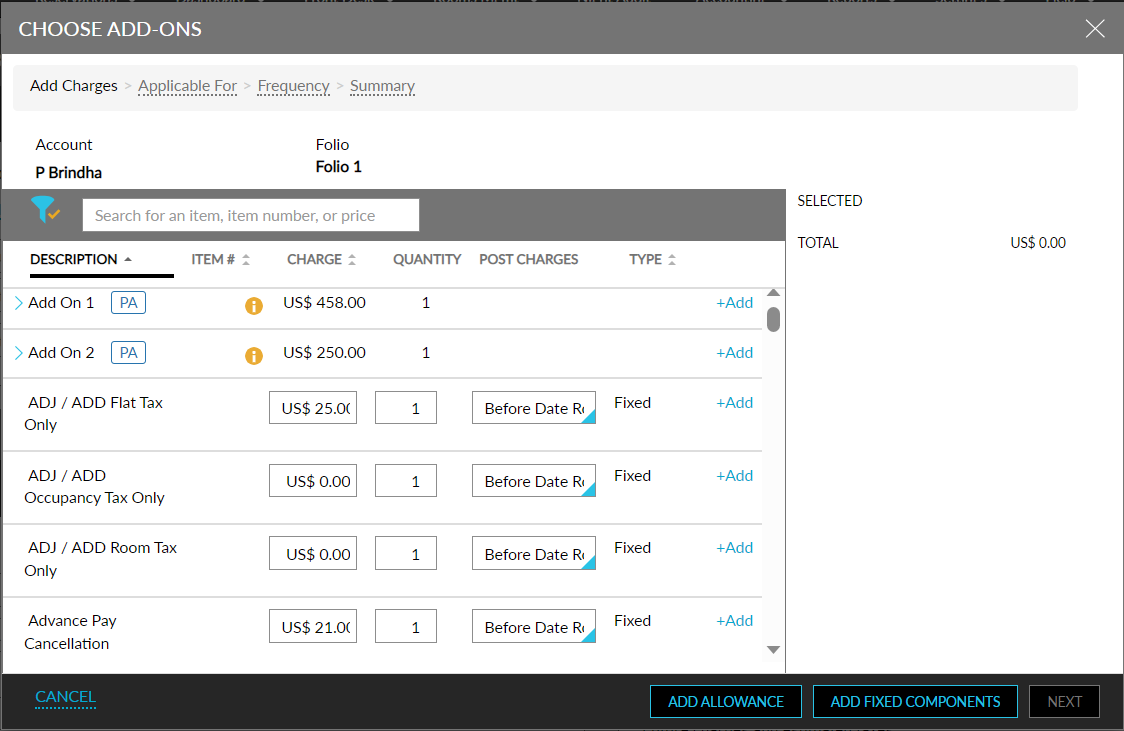
On clicking the Choose Add-Ons option, the Choose Add-Ons screen is displayed with the list of items configured for the property. By default, the list of items is displayed in alphabetical order and the package items are grouped and displayed under an accordion.
-
The following details are displayed in the Add Charges tab of the Choose Add-Ons screen:
-
Account - Displays the name of the guest.
-
Folio - Displays the default folio of the reservation.
-
Selected - Displays the items added.
-
Subtotal - Displays the sum amount of all items added without tax.
-
-
The table grid containing the list of items displays the following columns:
|
Field |
Description |
|---|---|
|
Description |
Displays the name of the item. |
|
Item |
Displays the product look-up number associated with the item. |
|
Charge |
Displays the charge of the item. By default, the charge configured for the item is displayed. Users can modify and enter a new charge value for the item in the respective field. |
|
Quantity |
Displays the quantity of each item added. For a package add-on, the value configured for the component is displayed by default and cannot be modified. For an individual item, the value 1 is displayed by default. This value can be modified. |
|
Post Charges |
Displays a dropdown with the following rules:
Users can select a rule from the dropdown, based on which the charges are posted to the folio. |
|
Type |
Displays the type of the component:
By default, the type Fixed is displayed for an Individual component. This value cannot be modified. |
-
Allowance items are hyperlinked and displayed in the Description column in the Choose Add-Ons screen. Users can modify the item by directly clicking the hyperlink.
-
An inventory indicator is displayed for all the inventory items along with the inventory count. If the inventory count of the item is unlimited, an infinity symbol is displayed.
-
If an item has a room type restriction, the following message is displayed: This item is not allowed for the selected room type <room type code>. This can be overridden.
-
If the item is not available at the property, the item name is highlighted and displayed in red font with the current availability count.
-
Users can filter and view the list of components available by clicking the filter icon. The filter icon displays the following options:
-
Group By - Enable this checkbox to display the package add-ons together in a group and individual add-ons together in another group. If the checkbox is not enabled, all the items are displayed in alphabetical order.
-
Package Add-Ons: Enable this checkbox to filter and display package add-ons in the Choose Add-Ons screen.
-
Individual Add-Ons: Enable this checkbox to filter and display individual add-ons in the Choose Add-Ons screen.
-
-
Users can select the components to be added by clicking the Add button. Once selected, the items added are displayed in the Selected section on the Choose Add-Ons screen.
-
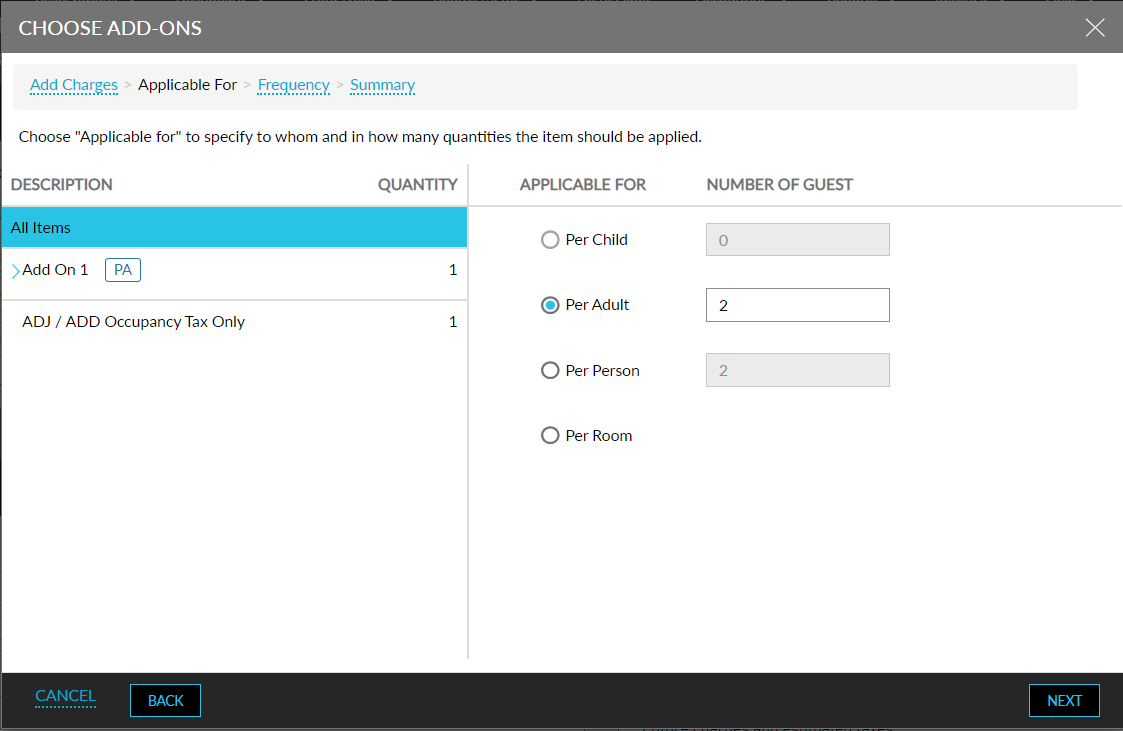
Clicking the Next option redirects the user to the Applicable for tab where users can select the applicability rule for the package components to be added from the following options:
-
Per Adult
-
Per Child
-
Per Person
-
Per Room
-
All custom age categories configured for the property are displayed here. If a specific age category is not defined or if there is no guest count added to the age category for the reservation, then the age category is disabled and cannot be selected.
-
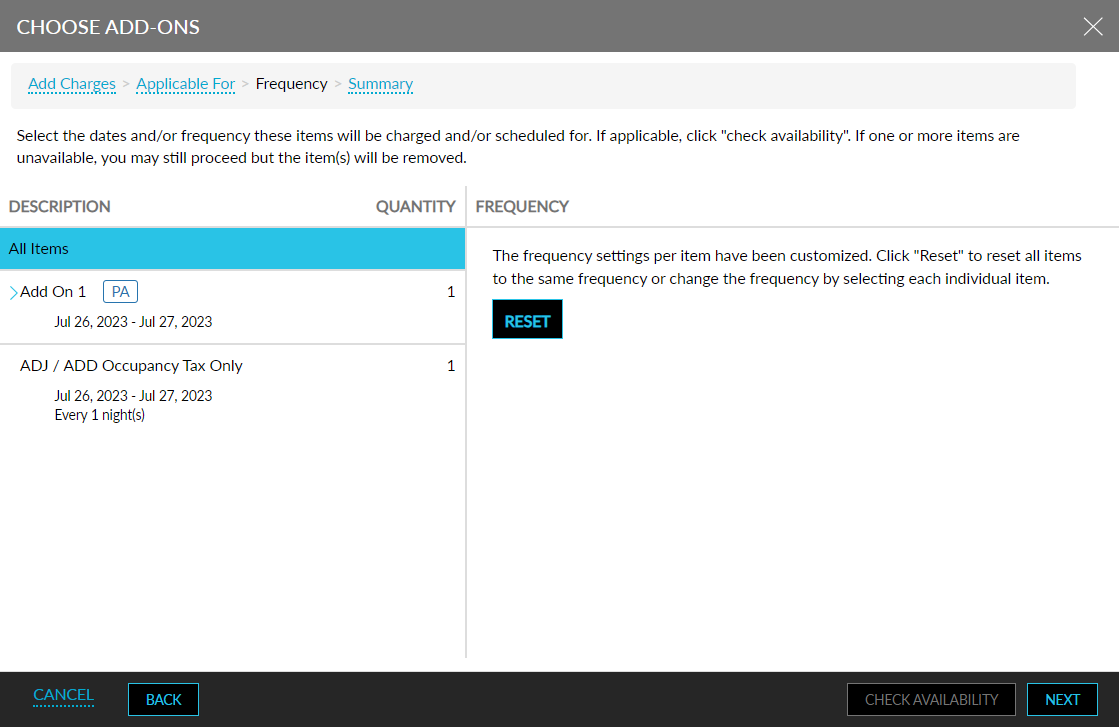
Clicking the Next option in the Applicable For tab redirects the user to the Frequency tab where users can set the date range and frequency based on which the component charges are posted. By default, the reservation dates are displayed in the Start and End field. This value can be modified. Users can set the frequency by selecting any of the following options:
-
Every night
-
First night only
-
Last night only
-
By days of week
-
Clicking the Next option in the Frequency tab redirects the user to the Summary tab.
-
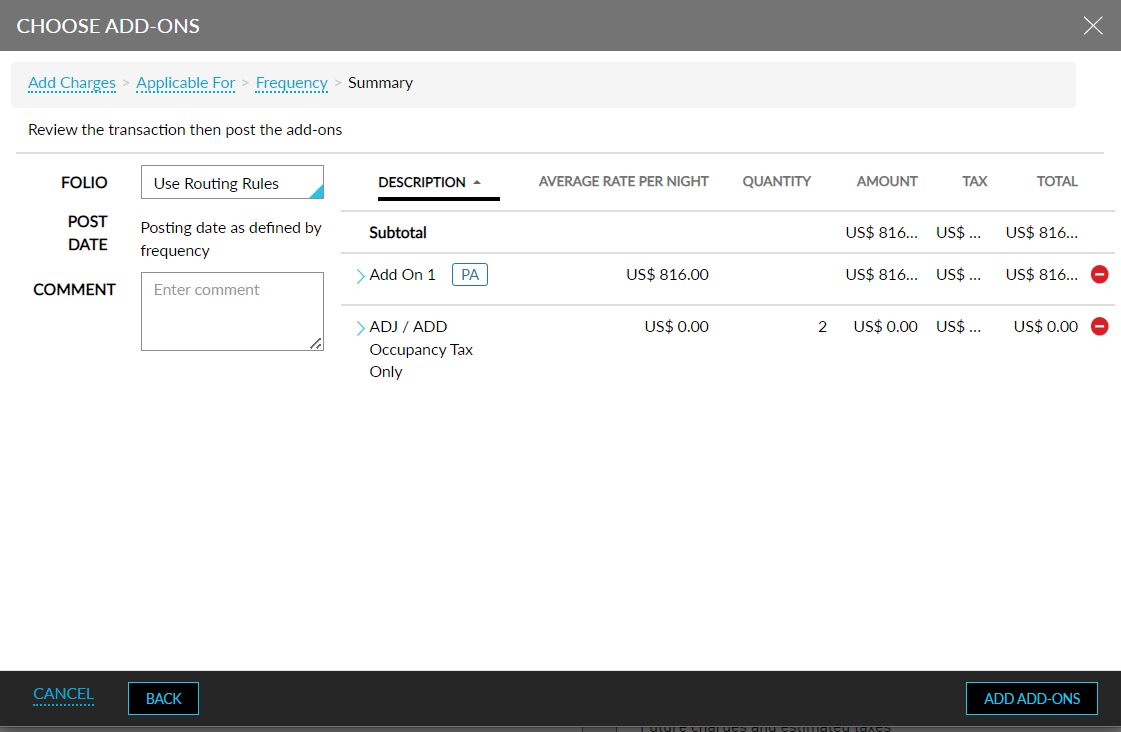
The Summary tab allows users to review the selected items and post the add-ons. Users can choose the folio from the Folio drop-down where the add-ons must be posted. The date in which the add-ons must be posted is displayed in the Post Date field. If multiple items with different frequencies are added, the following message is displayed: Posting date as defined by frequency. Users can configure the comment to be displayed for each add on in the Comment field. Clicking the Add Add-Ons option adds the item to the folio and is displayed in the Estimated Charges section. The following details are displayed in the Summary tab:
|
Field |
Description |
|---|---|
|
Description |
Displays the name of the item. For an inventory item, both inventory count and icon are displayed. Clicking on the individual item accordion displays the following details:
Clicking on the package accordion displays the list of items and it’s source. The source can be modified. |
|
Average Rate Per Night |
Displays the average rate per night. The average rate is calculated as follows, Amount of the add-on/ total number of nights. |
|
Quantity |
Displays the quantity of each add-ons selected. |
|
Amount |
Displays the amount of each add-ons selected. |
|
Tax |
Displays the tax of each add-ons selected. |
|
Total |
Displays the total of all add-ons selected. The Total is calculated as follows, Amount + Tax. |
-
Users can directly add a new allowance by clicking the Add Allowance option in the Choose Add-Ons screen. Here users can select the add-on for which the item must be added as an allowance from the Select Add On drop-down.
-
Users can directly add a new fixed component by clicking the Add Fixed Component option on the Choose Add-Ons screen. This button is displayed only if one or more add-on items are active at the property. Here users can select the add-on for which the item must be added as a fixed component from the Select Add On drop-down.
Override Restrictions - Room Type and Maximum Allowed Per Reservation
When an inventory item added as a part of package or as individual add-ons has a room type or maximum allowed per reservation restriction, an indicator is displayed and the list of items with the selected quantities are added to the Authorize Action tab with the following message: The selected item(s) can be overridden to be allowed in restricted room types and beyond the maximum allowed per reservation.
Only users assigned with the OverrideInventory permission can perform an override to the restrictions applied. If the user does not have the permission assigned, the following message is displayed: User does not have the required permission. Enable the respective checkboxes to perform the overrides:
-
Override for Restricted Room Types - Enable this checkbox to override items with a room type restriction. This checkbox is displayed only if the selected items has a room type restriction.
-
Override for Maximum Allowed Per Reservation - Enable this checkbox to override items with a maximum allowed per reservation restriction. This checkbox is displayed only if the selected items have a maximum allowed per reservation restriction.
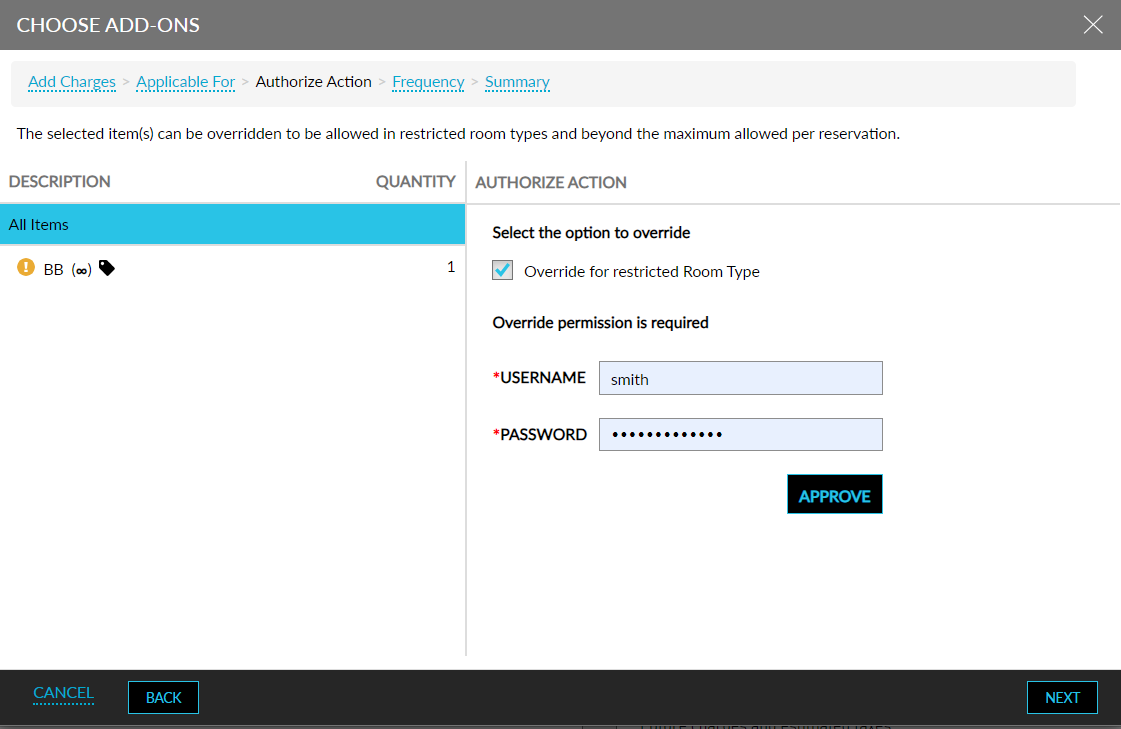
When users enter their credentials and click the Approve button, the credentials are validated, and the restrictions are overridden.
Override Inventory Shortage
When the dates or frequency are updated, users can check whether the items are available for the selected dates and frequency by clicking the Check Availability option in the Frequency tab. When the inventory item added as a part of package or as individual add-ons has a shortage at the property, the following message with Override action hyperlink is displayed in the Frequency tab of the Choose Add-Ons screen: There is not enough inventory for the items selected. Only available items will be added. Override.
Users can override this action by clicking the Override hyperlink. On clicking the hyperlink, the Authorize Action screen is displayed where users can enter the credentials to perform the override. The Save button is enabled only when the credentials are entered. Once the user clicks Save, the credentials are validated, and the restrictions are overridden.
Only users assigned with the OverrideInventory permission can perform the override. If the user does not have the permission assigned, the following message is displayed: User does not have the required permission.
To support this enhancement, the following changes are made Stay:
-
A new screen, Choose Add-Ons, is displayed on clicking the Choose Add-Ons button in the reservation summary screen (Estimated Charges ➜Choose Add-Ons). Here, users can view individual items and packages that are available at the property. The following tabs are displayed in the Choose Add-Ons screen:
-
Add Charges
-
Applicable For
-
Authorize Action
-
Frequency
-
Summary
-
-
A new indicator, Rate Fluctuation, is displayed against the add-on items with rate fluctuations in the Estimated Charges section. This allows users to identify items with rates fluctuation. This indicator is displayed only for package add-ons when the Enhanced Add-Ons feature setting is enabled.
For example, assume the following items are added as add-ons to the reservation:
-
Day 1 - Package add-on A: Pepsi and Burger
-
Day 2 - Package add-on: Pepsi and French Fries
In such a scenario, the rate of Pepsi on the 2nd day is compared with the 1st day. Here, if there is any fluctuation in rate, the rate fluctuation indicator is displayed for the package add-on in the Estimated Charges section. If no fluctuation in rate is identified, the indicator is not displayed.
-
A new indicator, PA, is displayed against package add-on items in the Choose Add-Ons screen. This allows users to identify package add-ons.